Start here
Dashboard
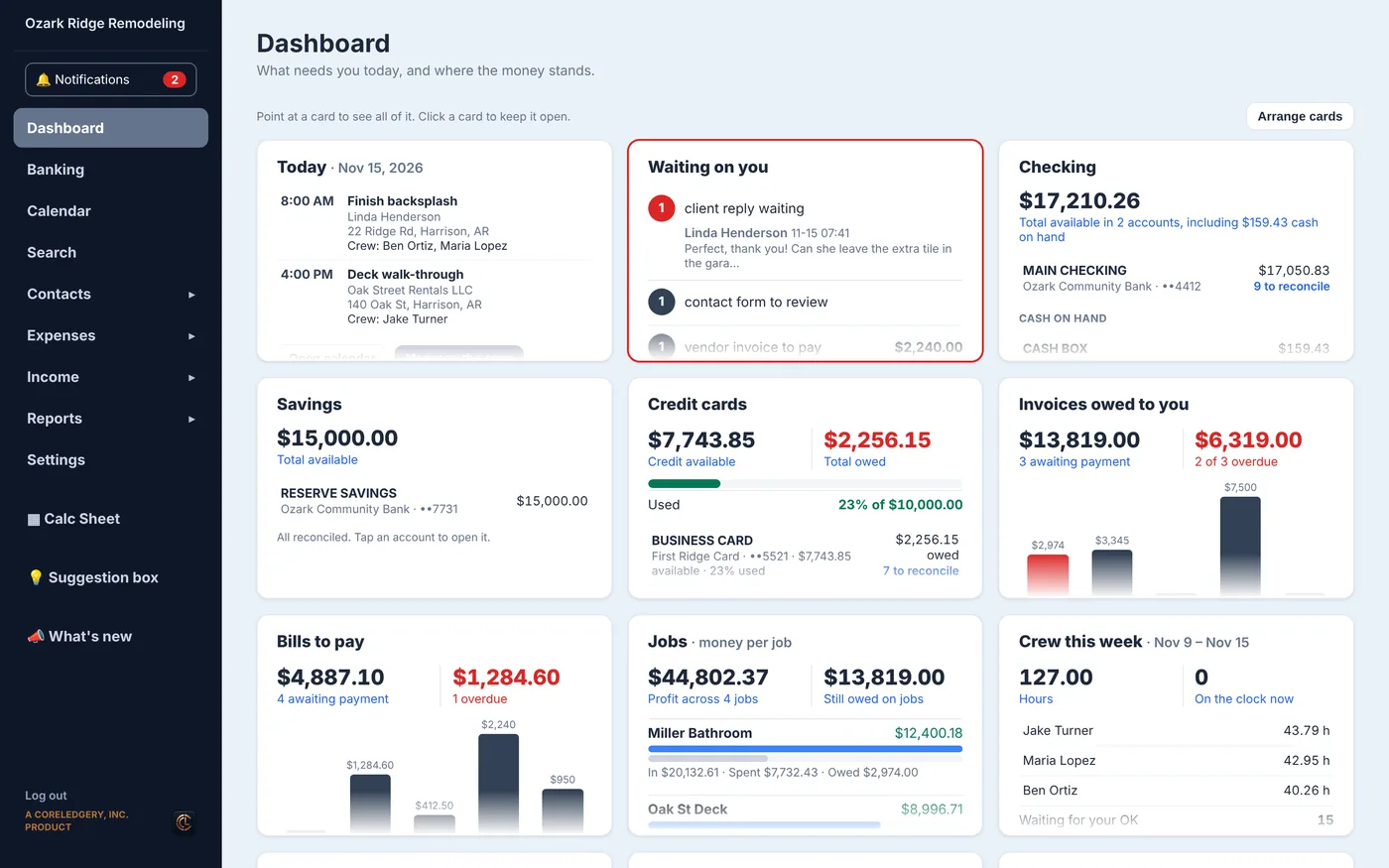
Your home page. One look tells you what needs you today and where the money stands.
How to use it
- Point at a card to see all of it. Click a card to keep it open.
- Click anything on a card (a bill, an invoice, a reply) to jump straight to it.
- Click Arrange cards to drag them into the order you like, make one wide, or hide one you never use.
What's here
- Today: your appointments and who is on them
- Waiting on you: client replies, bills to pay, estimates to invoice
- Bank, savings and credit card balances
- Invoices owed to you and bills to pay
- Money per job and crew hours this week
- What's new and Coming soon
Back to the top
Money
Banking
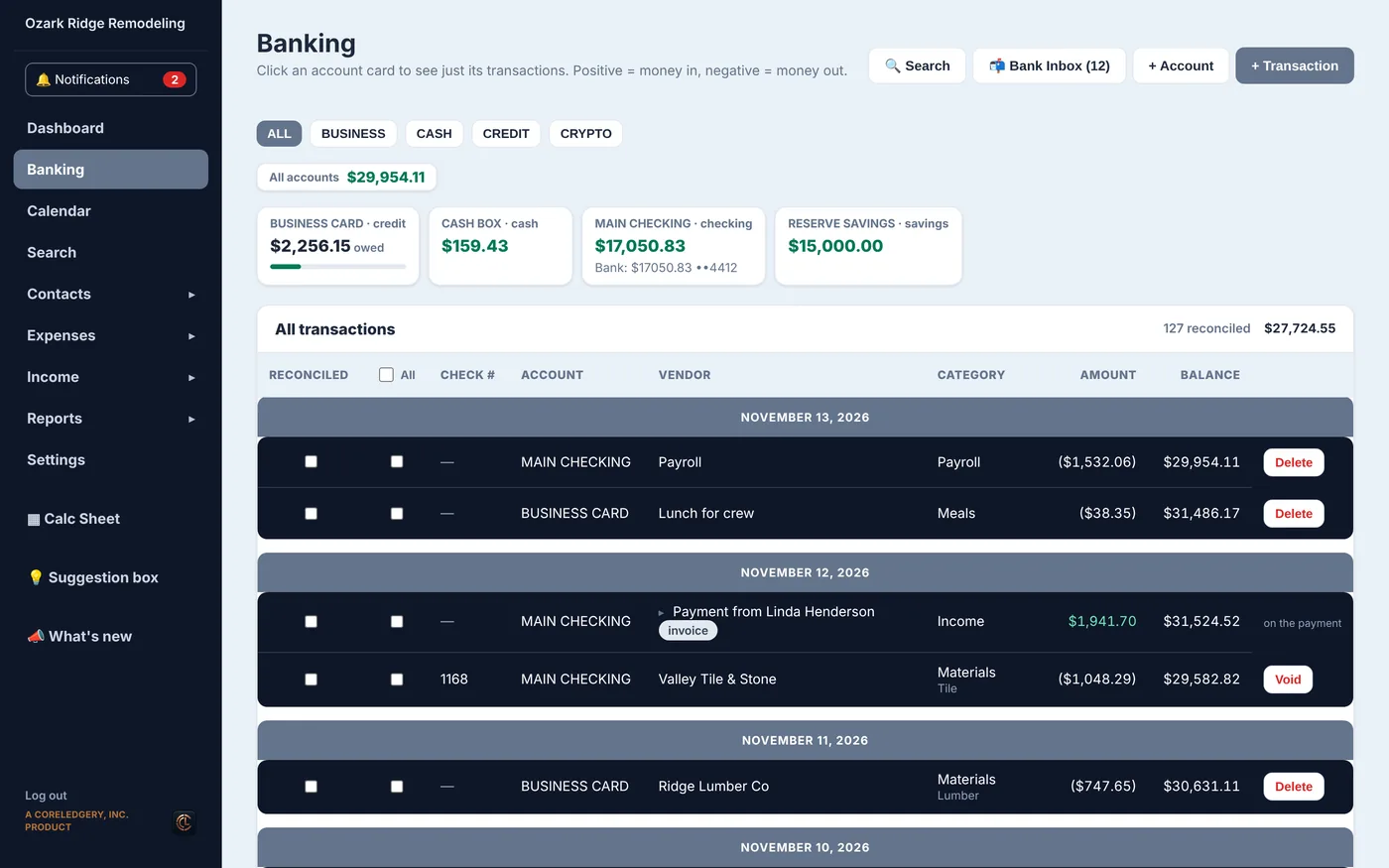
Every account you have (checking, savings, cash and credit cards) and every dollar in and out of them.
How to use it
- Click an account card to see just its transactions.
- Click + Transaction to add money in or money out.
- Tick the box on a line when it matches your bank statement. That is reconciling.
What's here
- Account cards with live balances
- One list of all transactions, newest first
- Category, job and vendor on every line
- Search, + Account and + Transaction buttons
Back to the top
Bank InboxComing soon
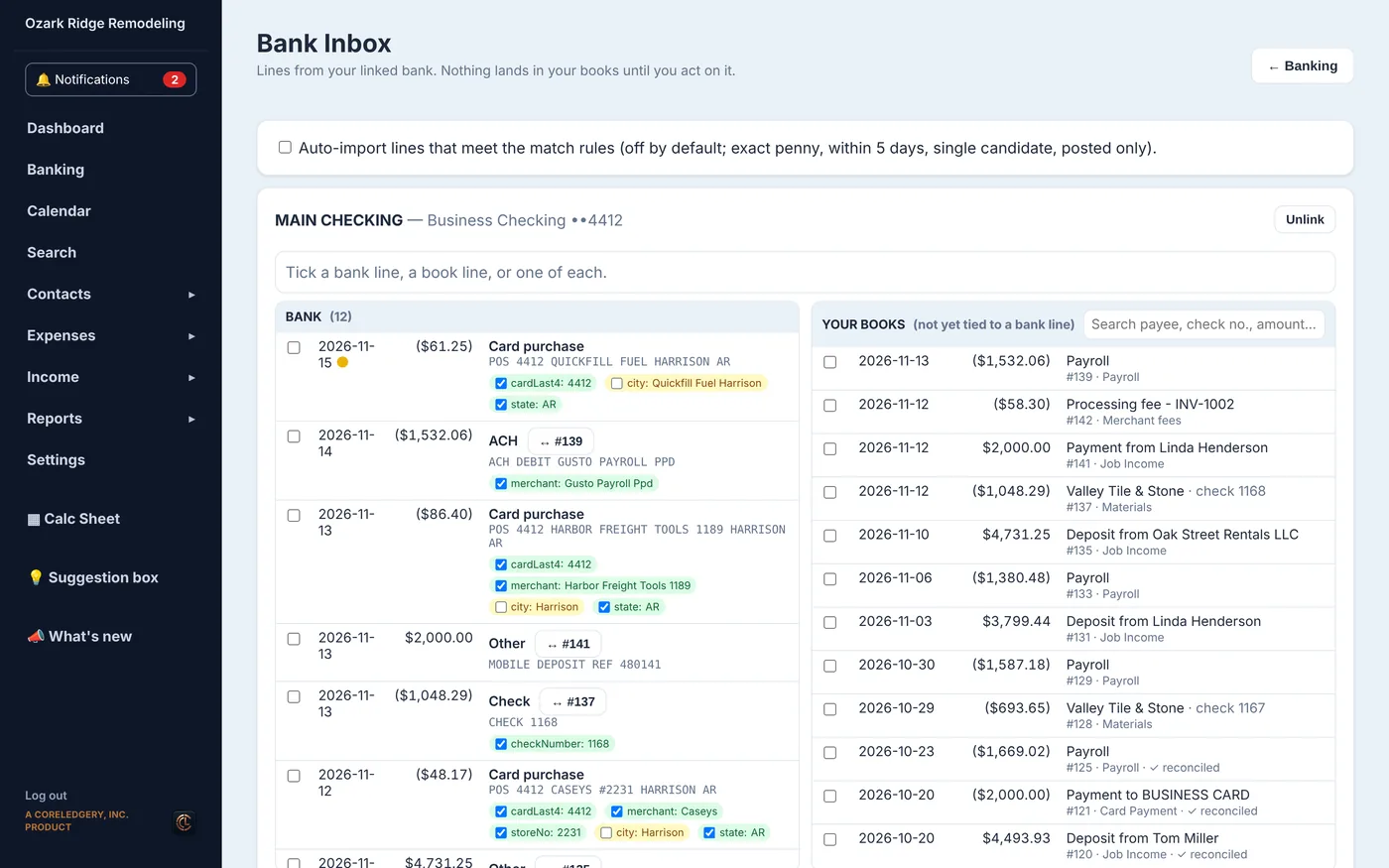
Link your bank and its lines wait here, side by side with your books. Nothing lands until you say so.
How to use it
- Tick a bank line on the left and a book line on the right, then Link as same.
- Or Add it, Merge it with a line you already have, or Delete it.
- Auto-match can pair the easy ones for you: same amount, close date.
What's here
- Bank lines on the left, your books on the right
- Check numbers and payees decoded for you to say yes or no to
- Pending lines marked with a yellow tick
- On paid plans, with two-step sign-in
Back to the top
Schedule and find
Calendar
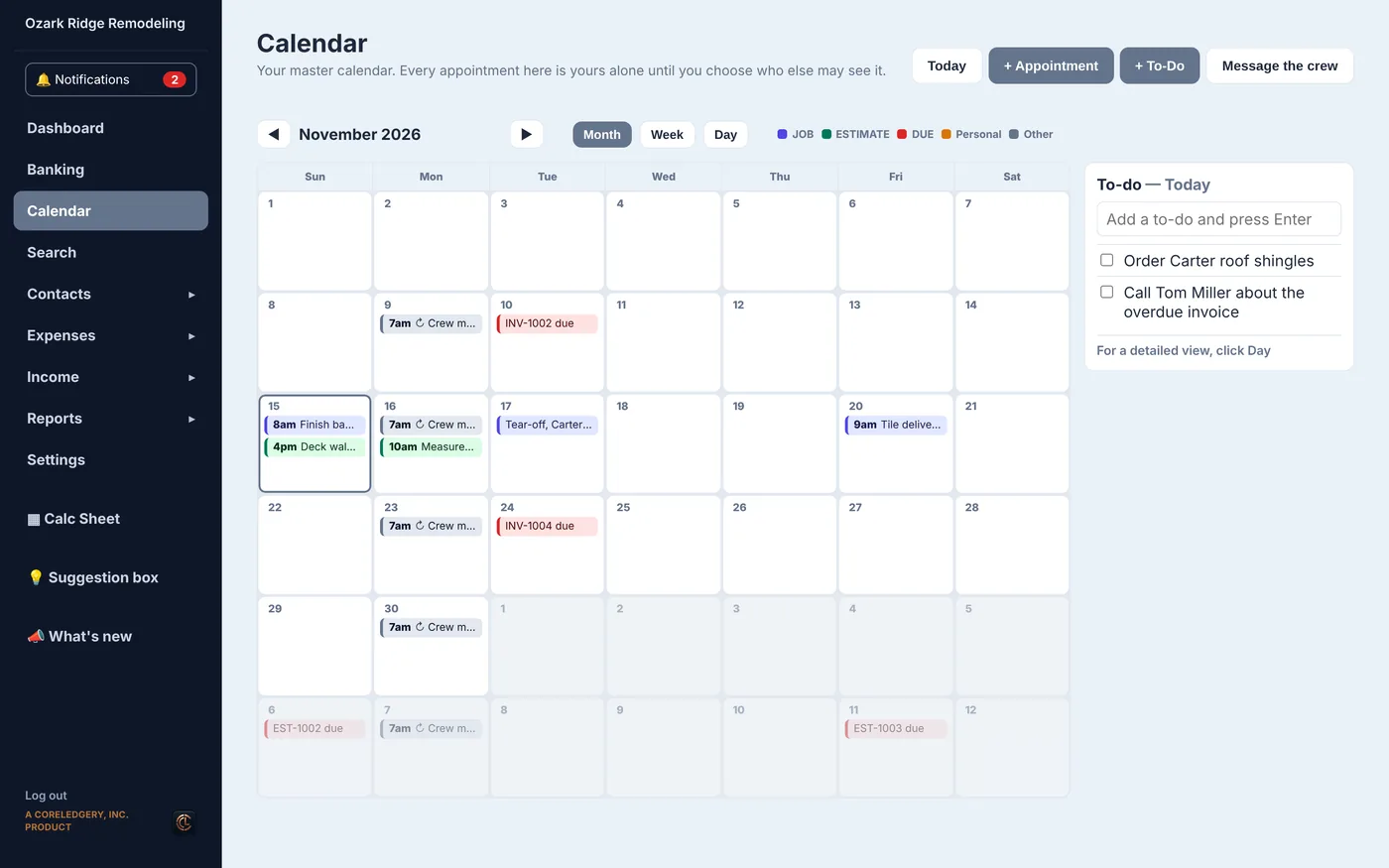
Your master calendar. Jobs, appointments, invoice due dates and your to-do list in one place.
How to use it
- Click a day, or + Appointment, to book something.
- Add the crew to it and they see it in the Crew App.
- Type in the To-do box and press Enter to add a task.
What's here
- Month, week and day views
- Jobs, estimates, due dates and personal items, color coded
- A to-do list beside the calendar
- Message the crew button
Back to the top
Search
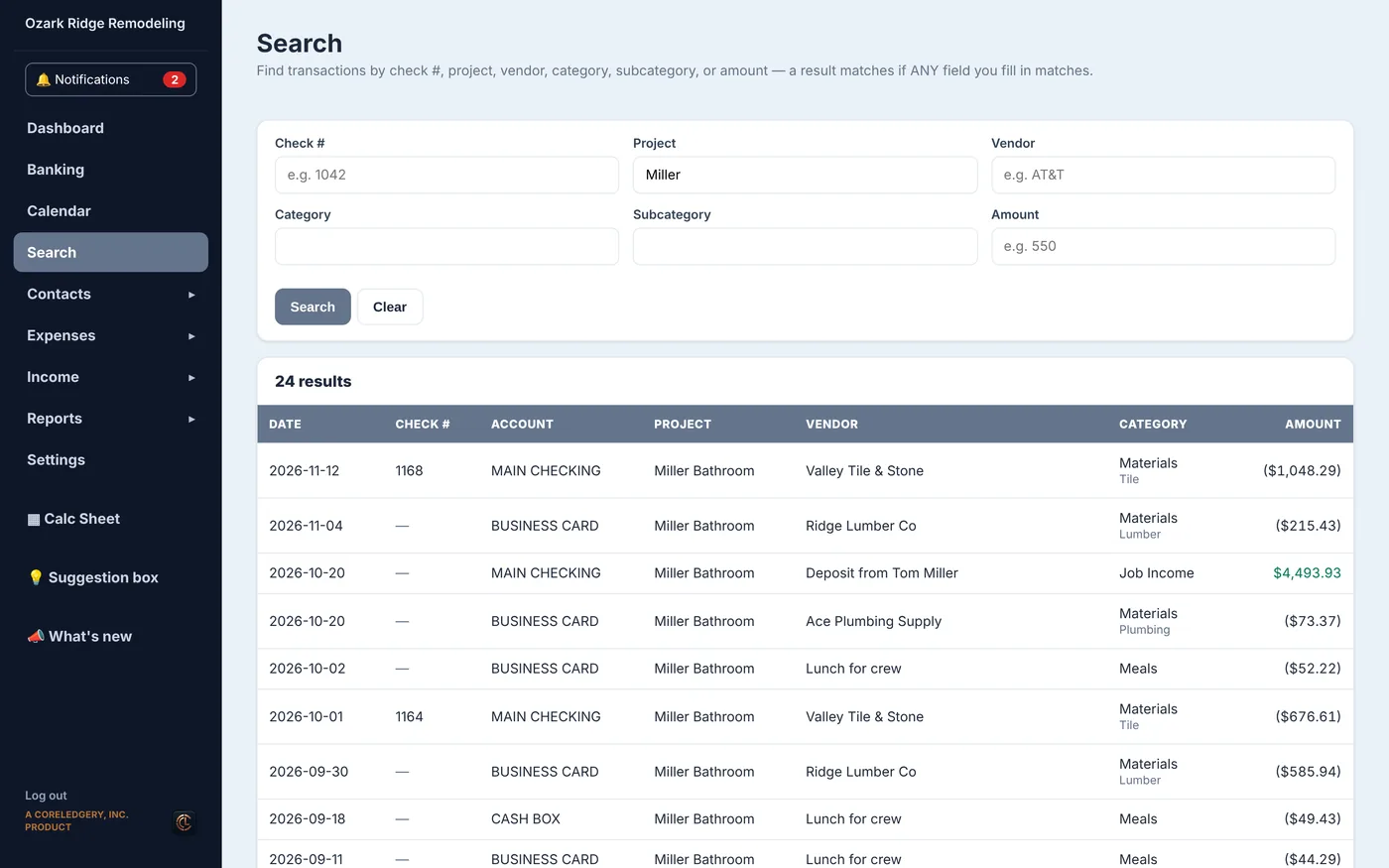
Find any transaction fast.
How to use it
- Fill in any box: check number, job, vendor, category or amount.
- Click Search. A line shows if any box matches.
- Click Clear to start over.
What's here
- Search by check #, project, vendor, category, subcategory or amount
- Results with account, job and category
Back to the top
Contacts
All Contacts
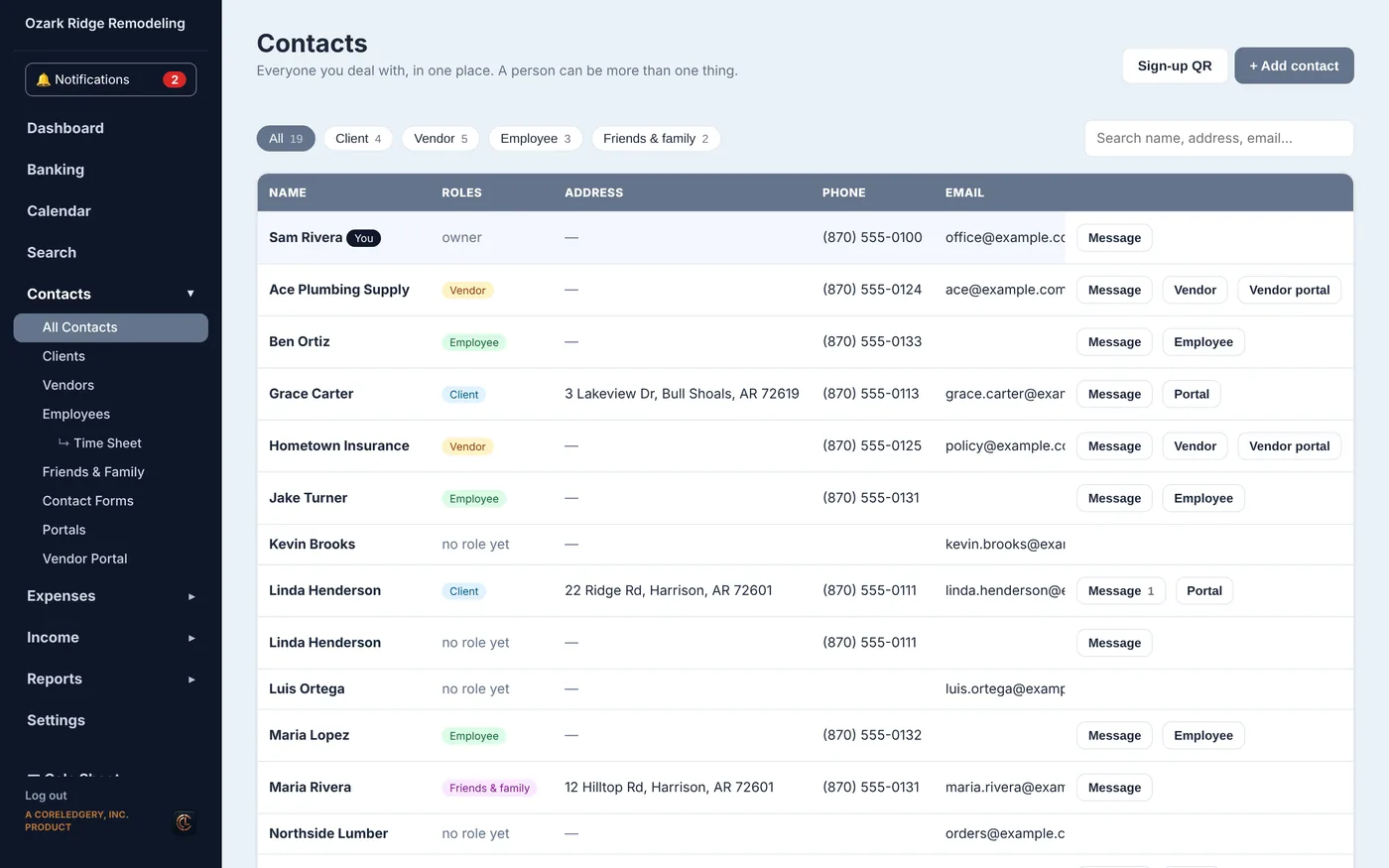
Everyone you deal with, in one list. One person can be a client and a vendor at the same time.
How to use it
- Click + Add contact, or let people sign themselves up with your Sign-up QR.
- Click a name to see everything about them.
- Use the filters at the top to see only clients, vendors, employees or friends and family.
What's here
- Name, roles, address, phone and email
- Message and portal buttons
- Merge two cards when someone was entered twice
Back to the top
Clients
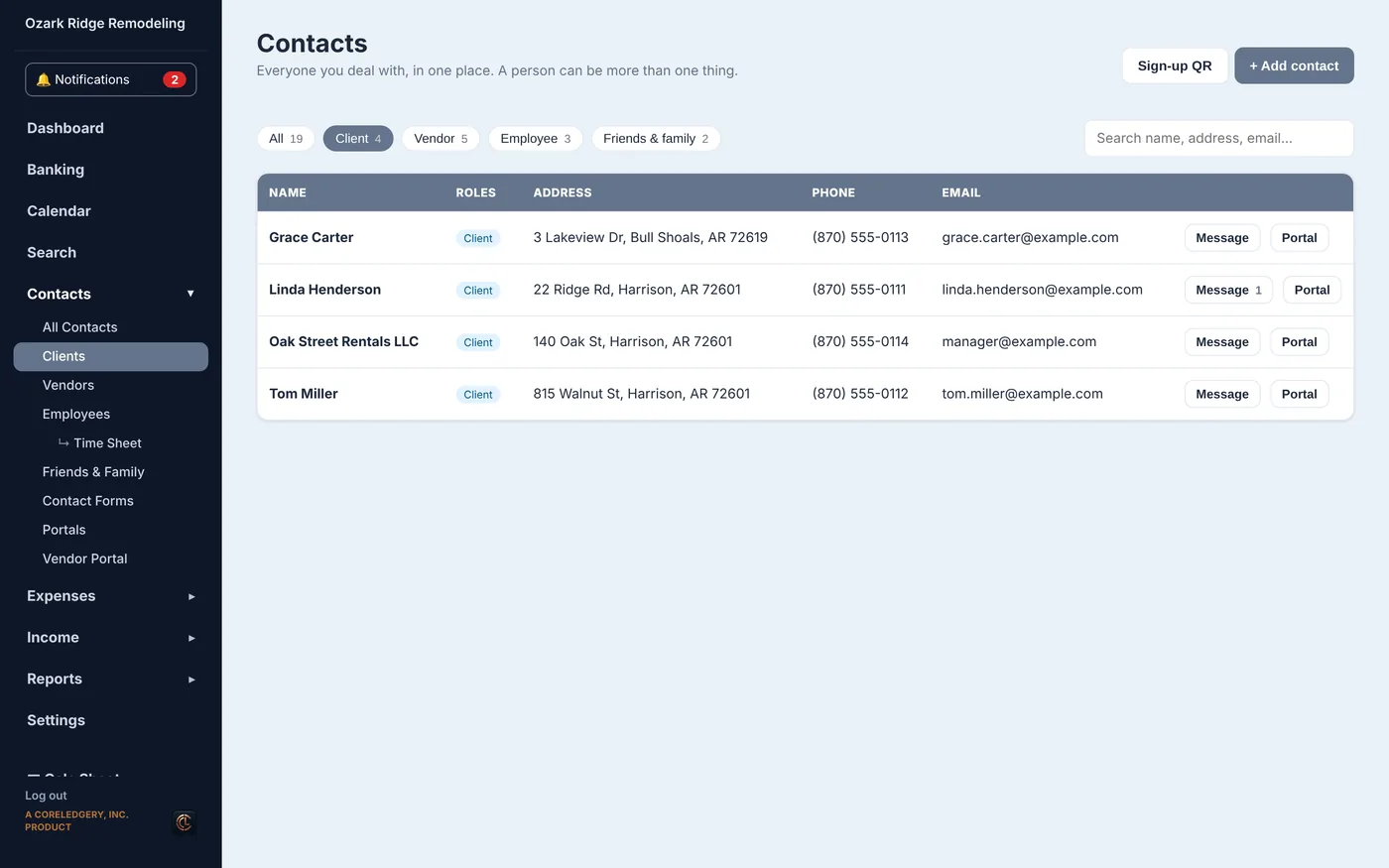
The people and businesses you bill.
How to use it
- Add a client, then make an estimate or invoice for them.
- Click Portal to give them their own sign-in.
What's here
- Every client with contact details
- Message and portal shortcuts
Back to the top
Vendors
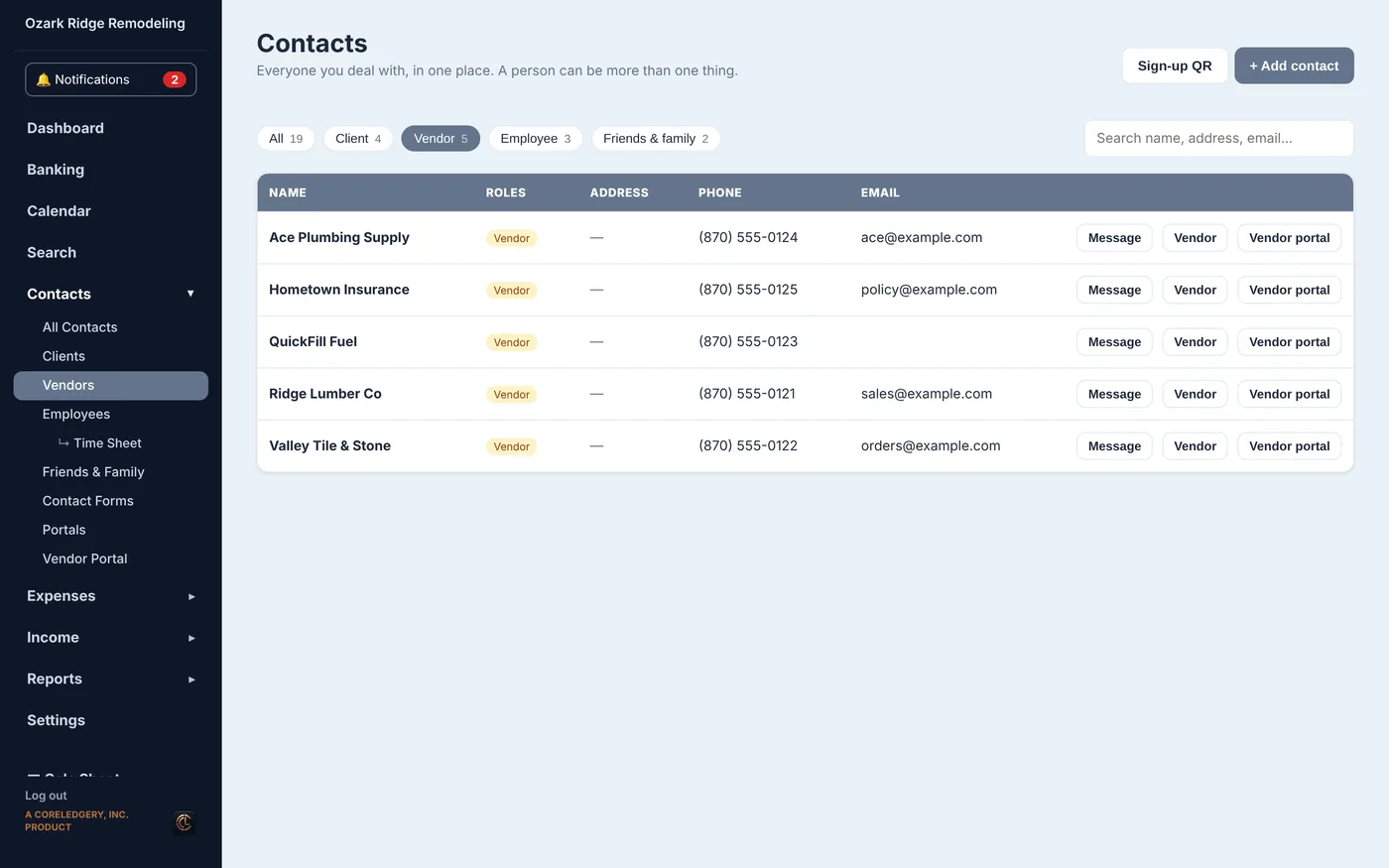
The suppliers and subs you pay.
How to use it
- Add a vendor and pick what they supply.
- Turn on their vendor portal so they can send you quotes and invoices.
What's here
- Every vendor with contact details
- Vendor portal on or off for each
Back to the top
Employees
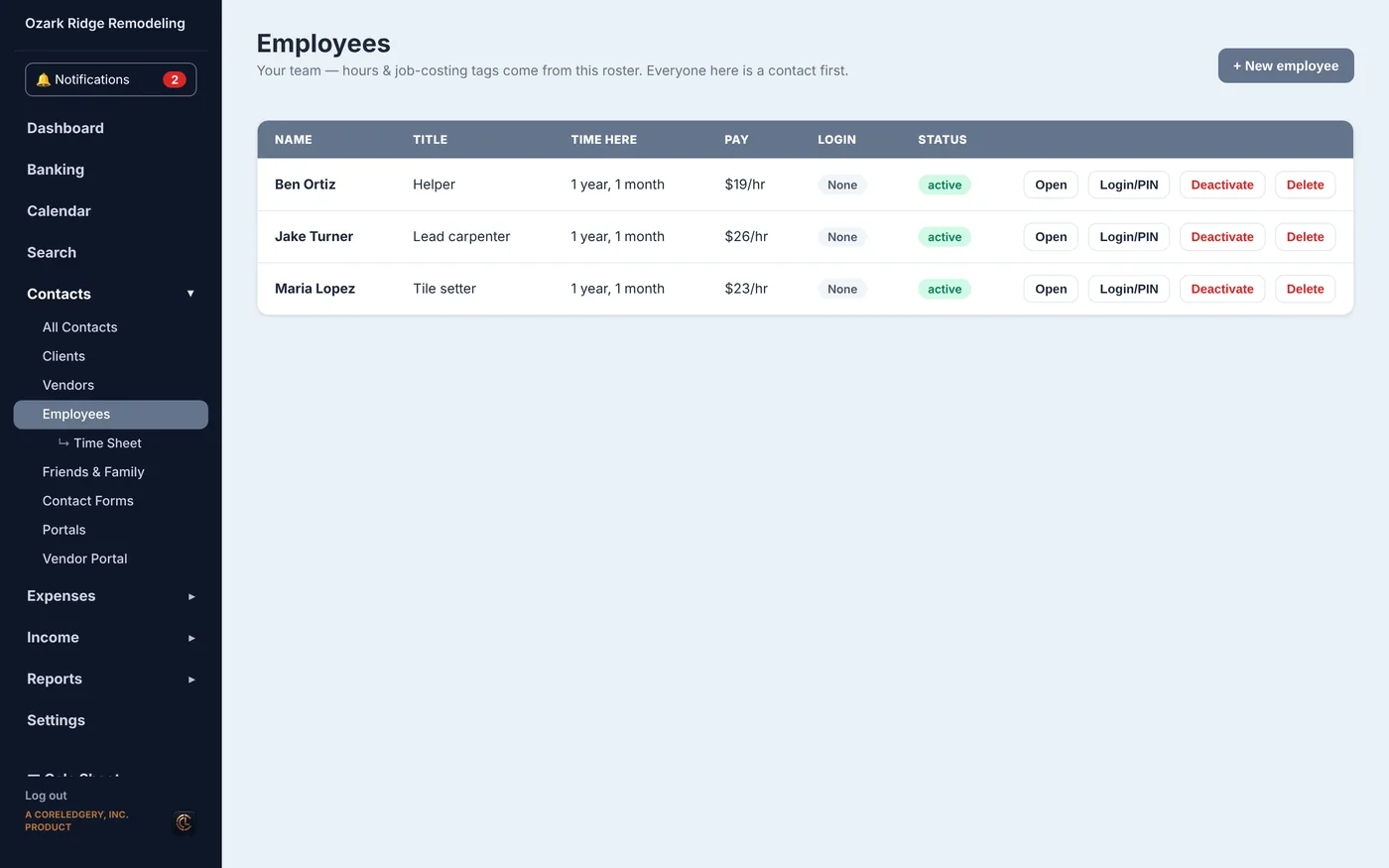
Your crew. Pay rate, job title, and their Crew App login.
How to use it
- Click + New employee.
- Set their pay and give them a login or PIN for the Crew App.
What's here
- Name, title, time here and pay
- Crew App login status
- Deactivate someone who left without losing their history
Back to the top
Time Sheet
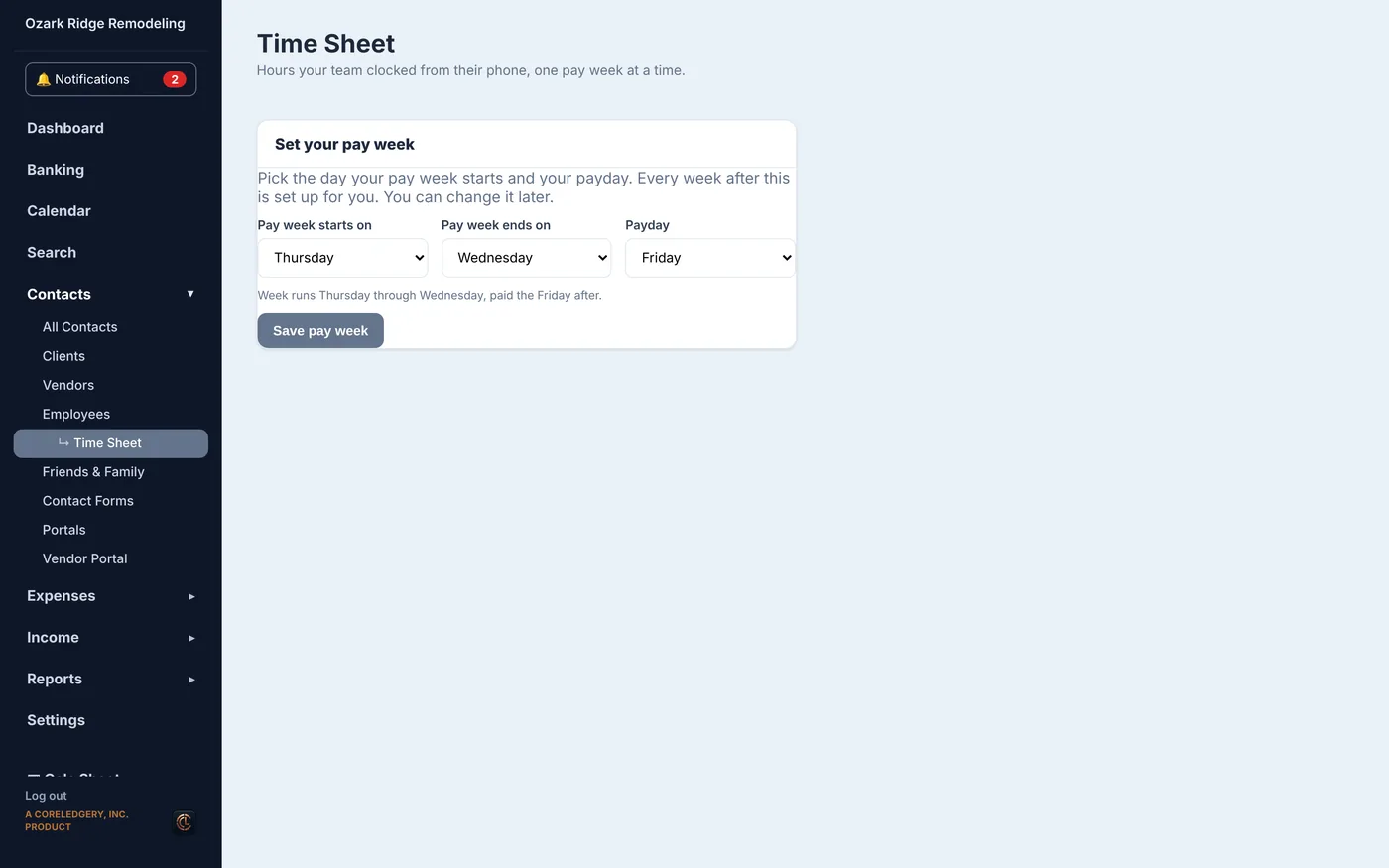
Hours your crew clocked from their phones, one pay week at a time.
How to use it
- Set the day your pay week starts and your payday once.
- Each week, check the hours and approve them.
What's here
- Hours by person and by job
- Labor counts as a job cost in Job Costing
Back to the top
Friends & Family
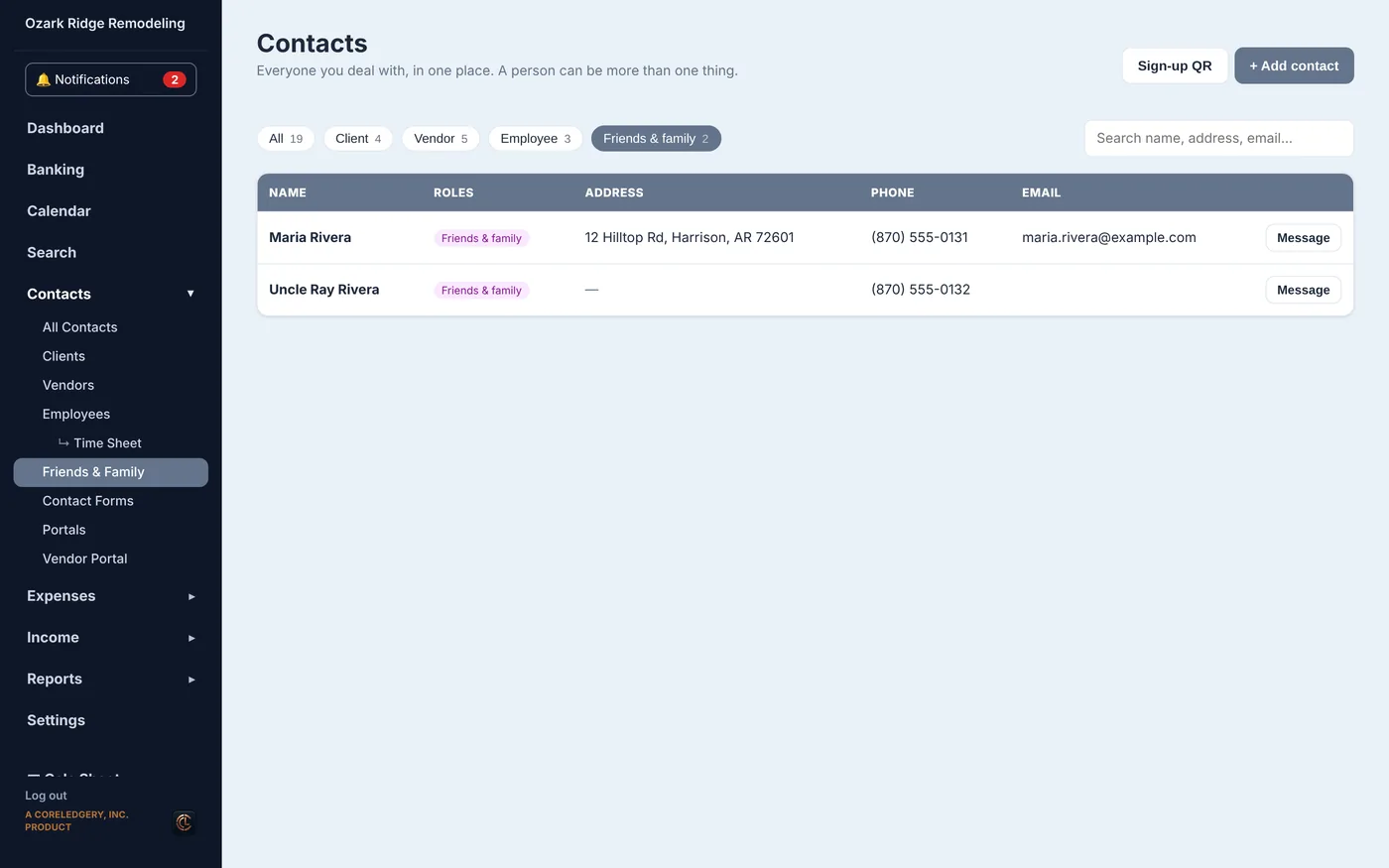
People who are not clients or vendors but you still want handy.
How to use it
- Add a contact and tick Friends & family.
What's here
- Kept apart from your business lists
Back to the top
Contact Forms
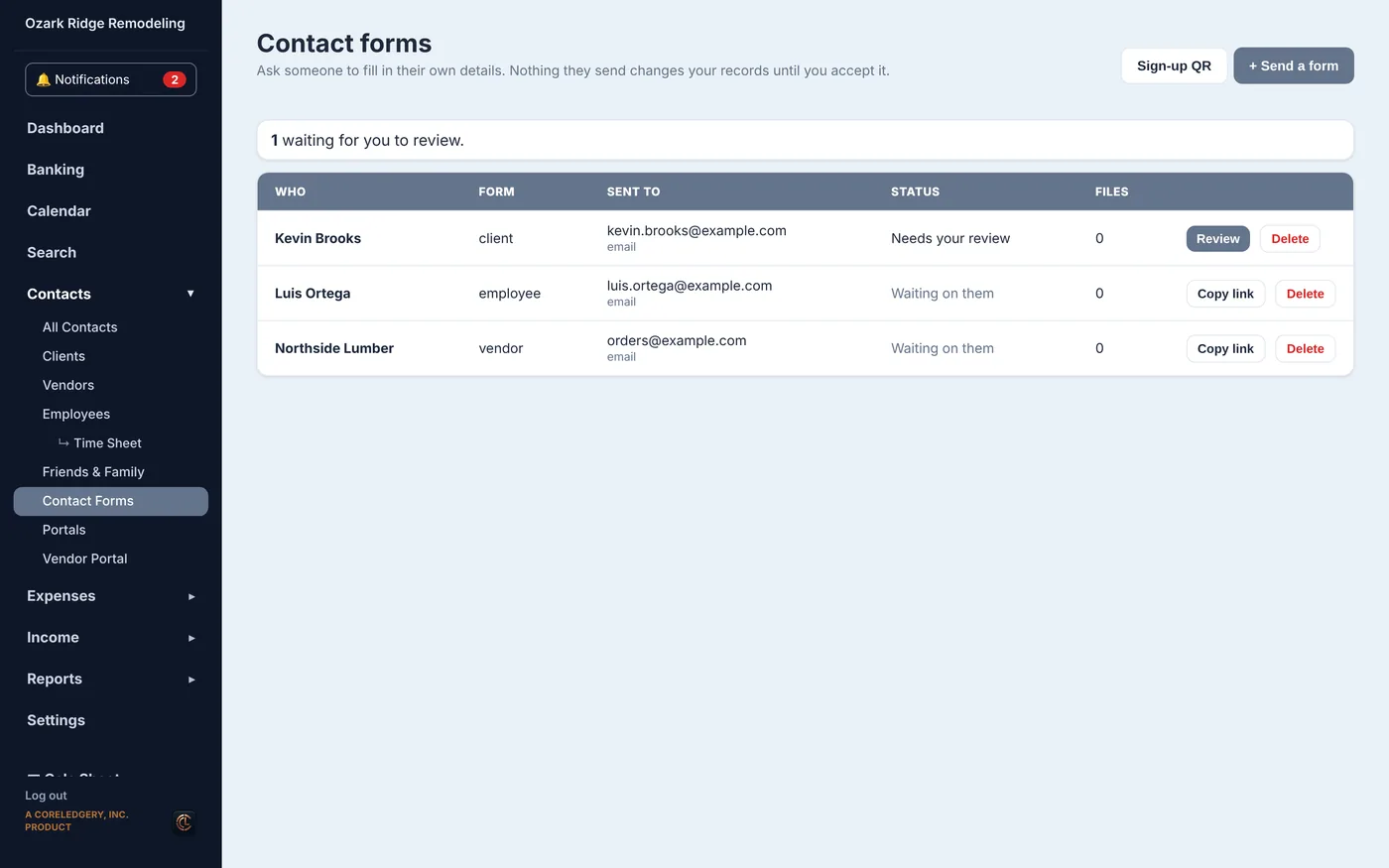
Send a new client, vendor or employee a form to fill in their own details.
How to use it
- Click Send a form and pick who it is for.
- When they send it back, click Review and accept it. Nothing changes until you do.
What's here
- Who you sent forms to and what state each is in
- Their answers and files, waiting for your review
Back to the top
Portals
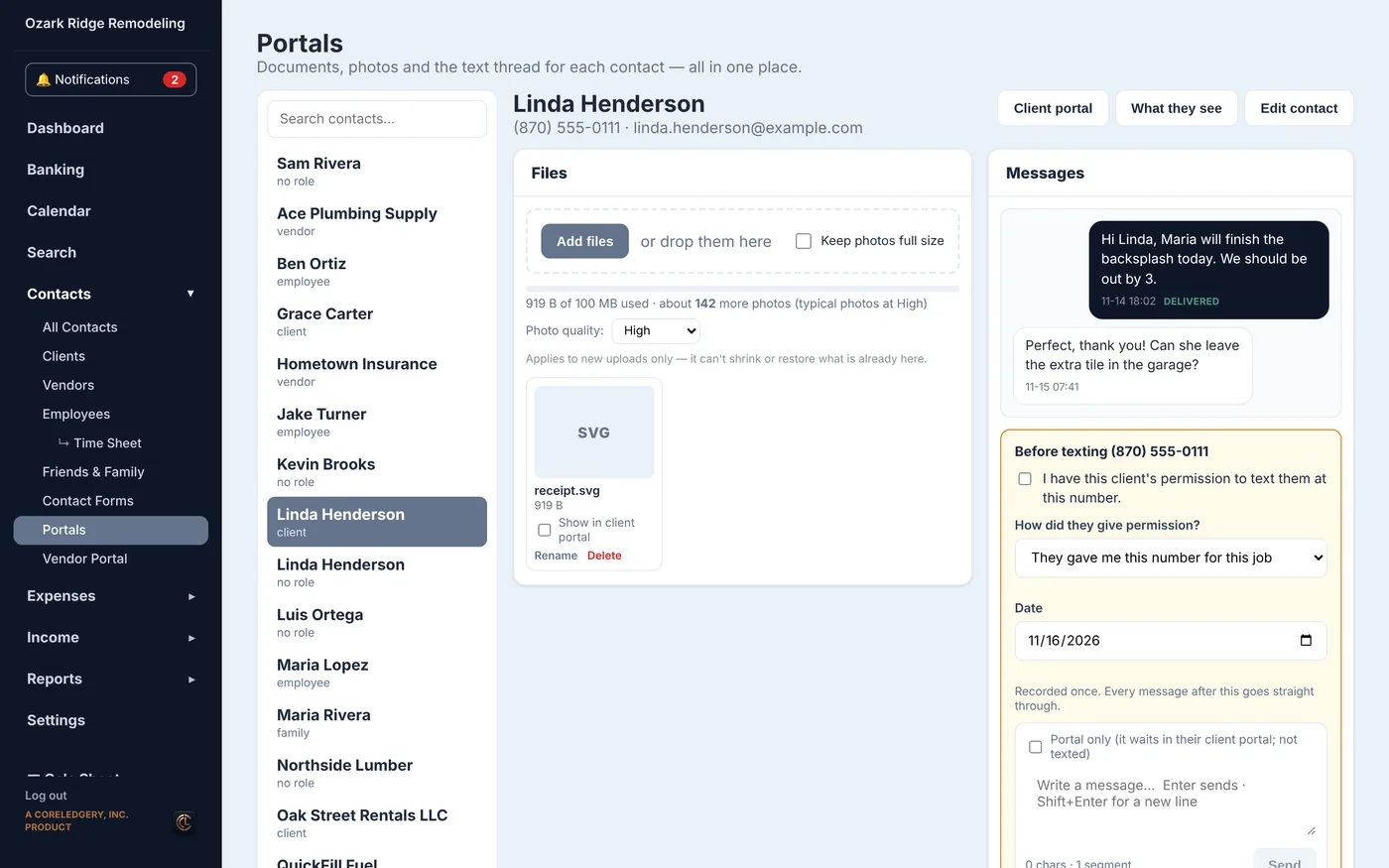
Each client's and vendor's documents, photos and text thread, all on one page.
How to use it
- Click a name on the left.
- Read and answer their messages, and add or look at files.
What's here
- Files and photos for each person
- The text conversation beside them
Back to the top
Vendor Portal
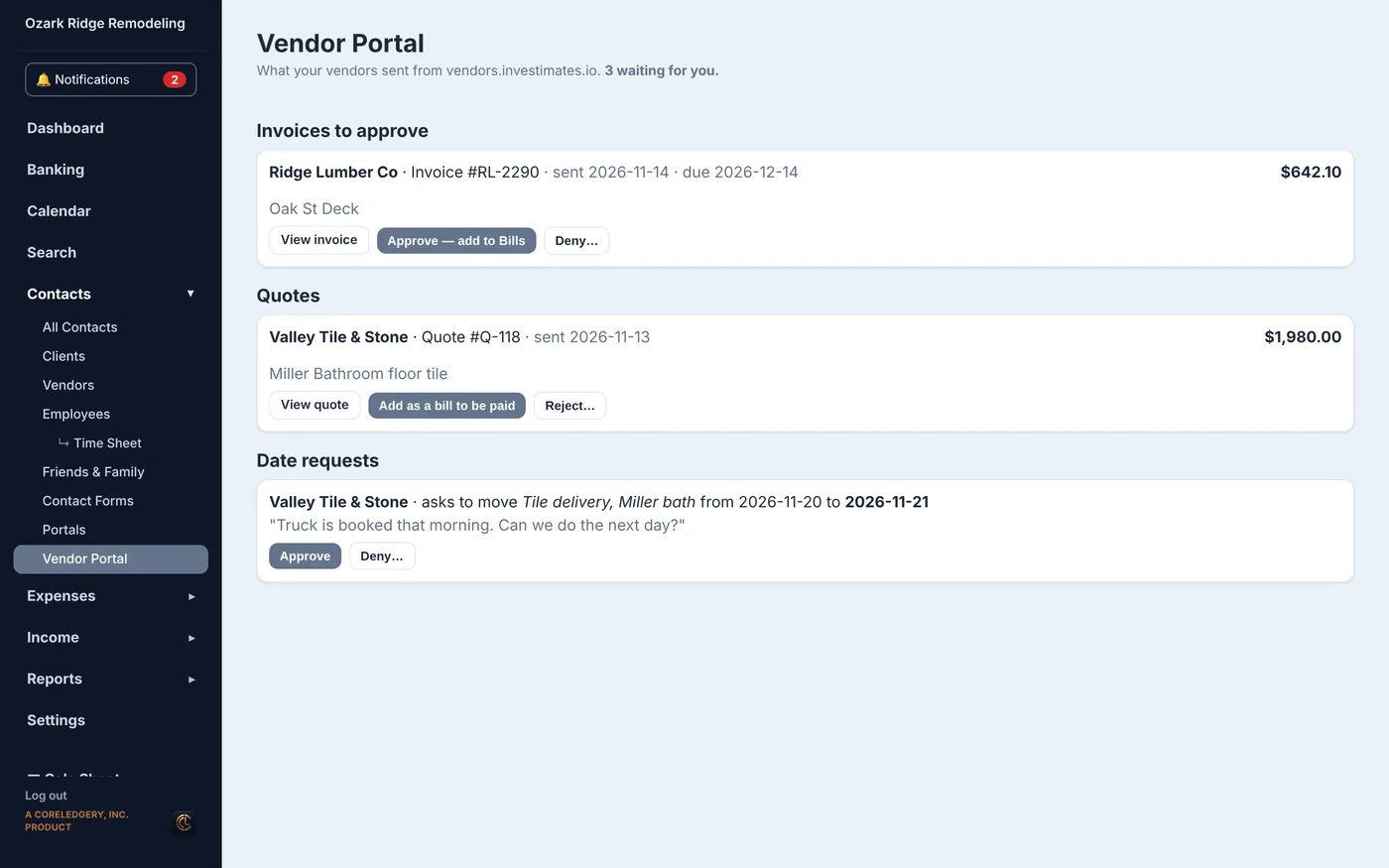
What your vendors sent from their portal: invoices, quotes and date requests.
How to use it
- Approve an invoice and it becomes a bill to pay.
- Accept a quote, or answer a request to move a date.
What's here
- Invoices to approve
- Quotes
- Date change requests
Back to the top
Expenses
Bills
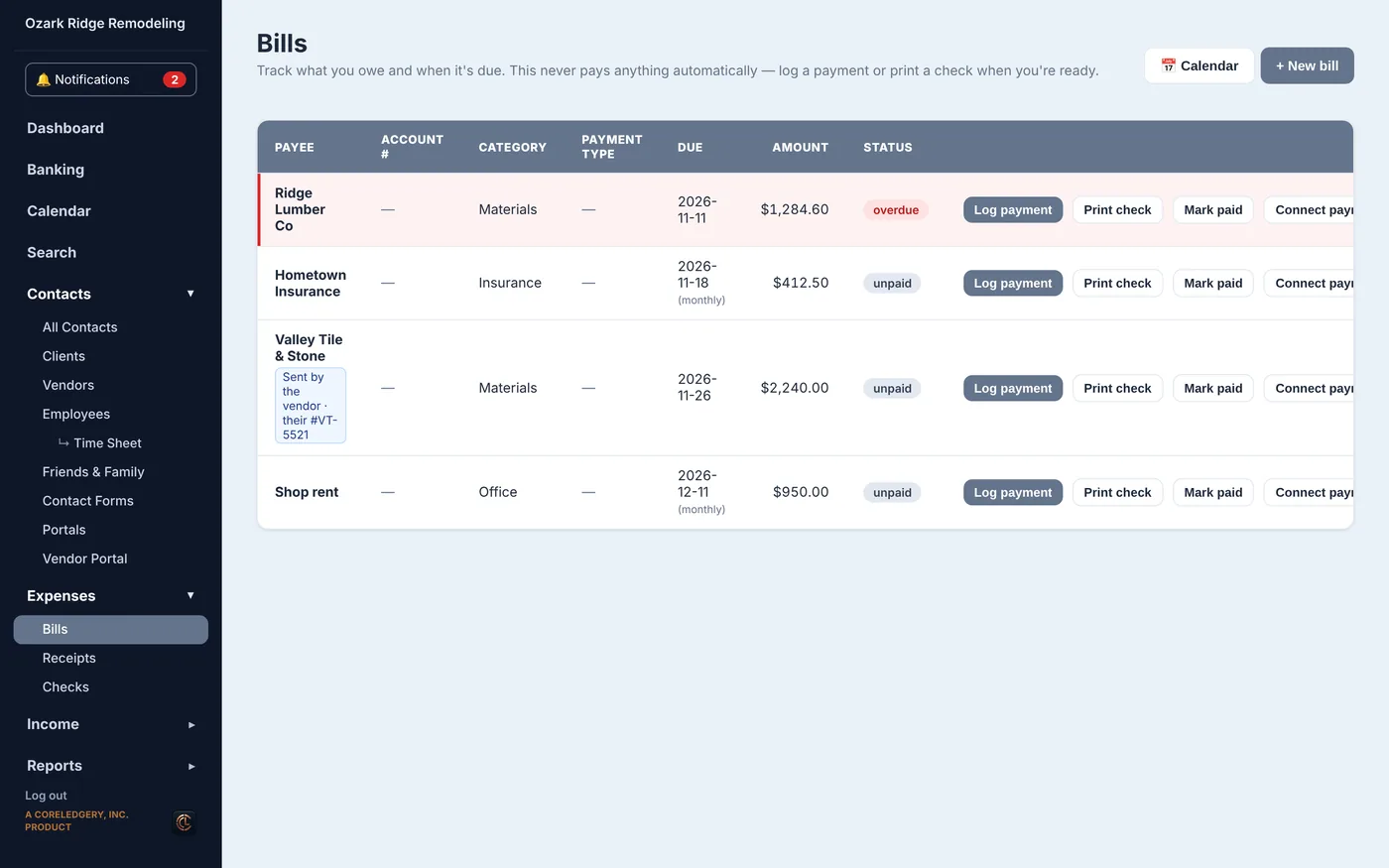
What you owe and when it is due.
How to use it
- Click + New bill.
- When you pay it, click Log payment, or Print check to pay by check.
What's here
- Every bill with due date and status
- Overdue bills marked in red
- Calendar view of due dates
Back to the top
Receipts
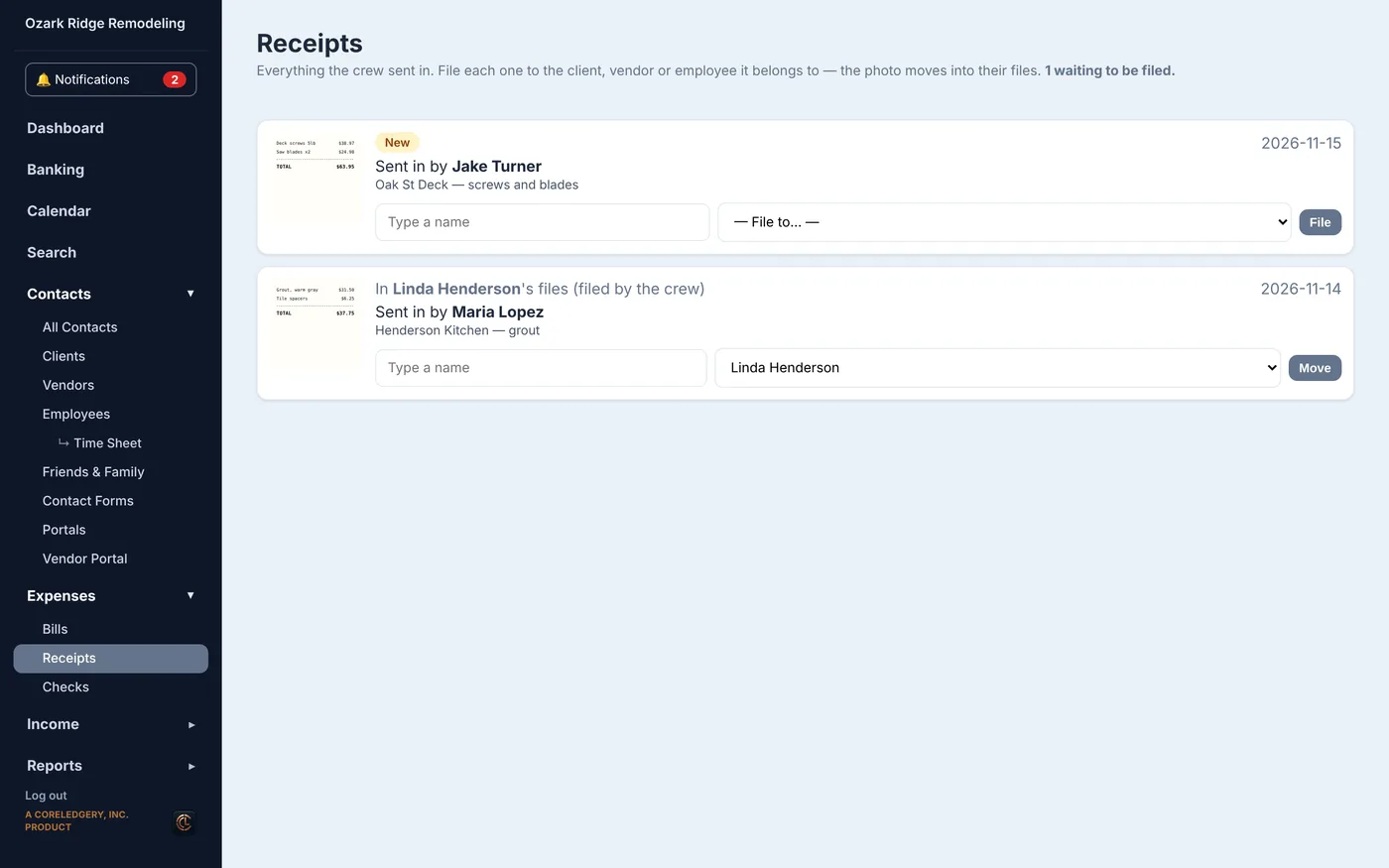
Photos of receipts your crew sends in from the Crew App.
How to use it
- Pick the job, client or vendor it belongs to.
- Click File. It moves into their files.
What's here
- New receipts waiting to be filed
- Who sent each one and when
Back to the top
Checks
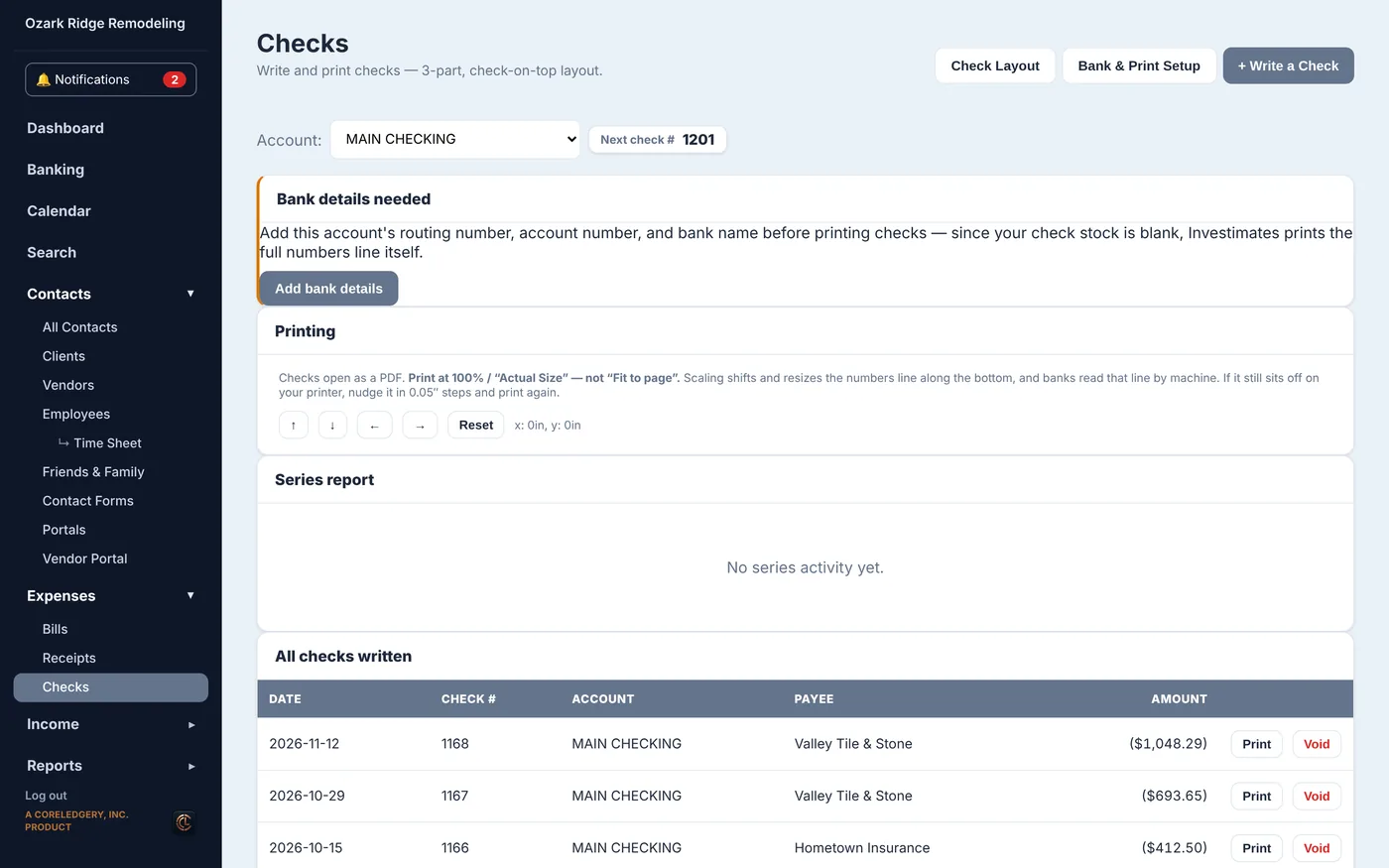
Write and print checks on standard check-on-top paper.
How to use it
- Pick the account.
- Add your bank details once (Bank & Print Setup).
- Click + Write a Check, then Print.
What's here
- Next check number
- Every check written, with Print and Void
- Check layout to line up with your paper
Back to the top
Income
Estimates
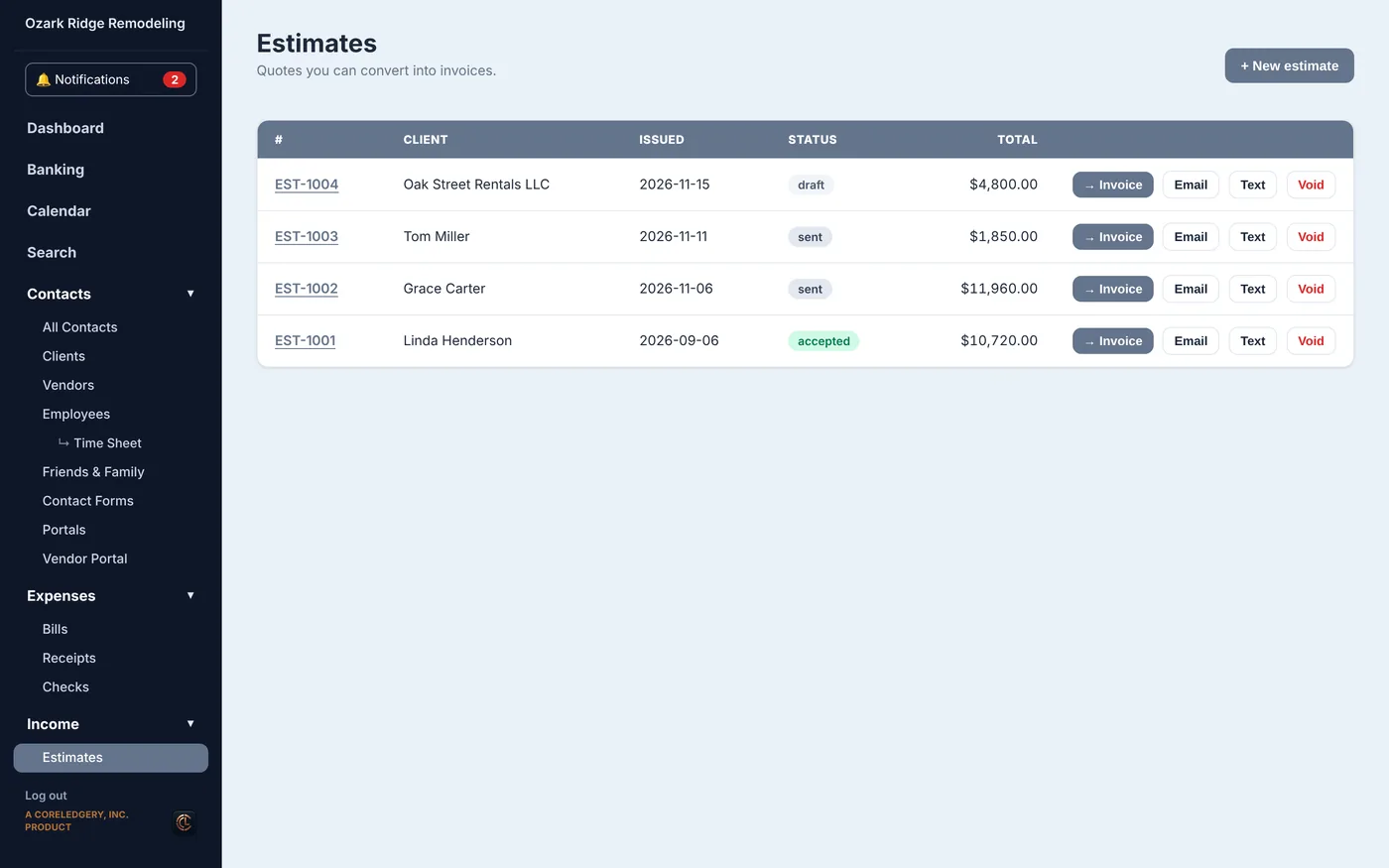
Quotes you send to clients. They can sign them online.
How to use it
- Click + New estimate and add your line items.
- Email or text it.
- Once it is signed, click Invoice to turn it into an invoice.
What's here
- Every estimate with status
- Email, text and invoice buttons
Back to the top
Invoices
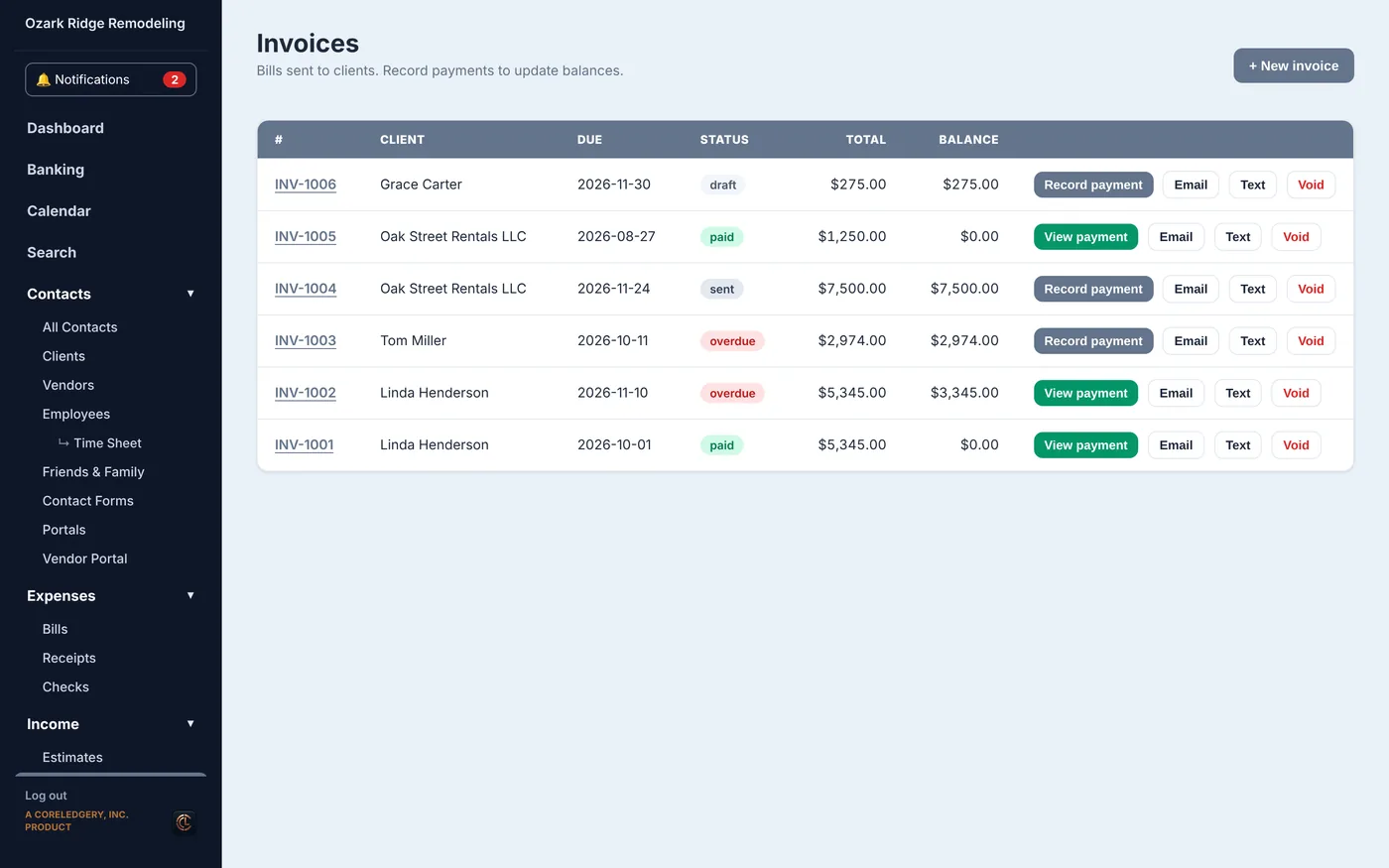
Bills you send to clients, and the payments that come back.
How to use it
- Click + New invoice, or make one from an estimate.
- Email or text it.
- When they pay, click Record payment. With Online Payments they can pay by card from the invoice.
What's here
- Every invoice with what is still owed
- Overdue invoices marked
- Record payment, email and text buttons
Back to the top
Reports
Profit & Loss
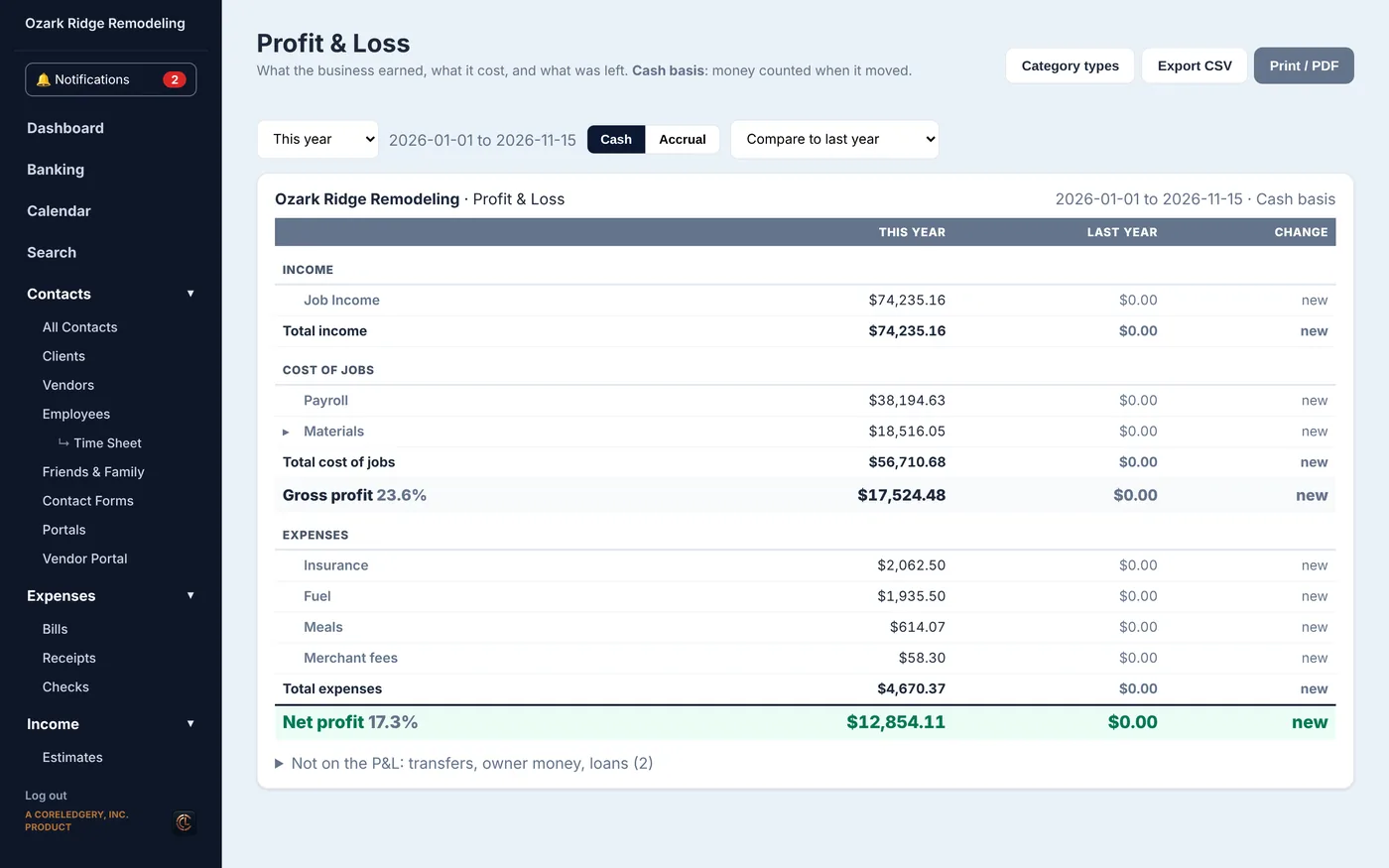
What the business earned, what it cost, and what was left.
How to use it
- Pick the dates.
- Choose Cash (money when it moved) or Accrual.
- Compare to last year, export, or print.
What's here
- Income, cost of jobs, gross profit, expenses and net profit
- Last year beside this year
Back to the top
Job Costing
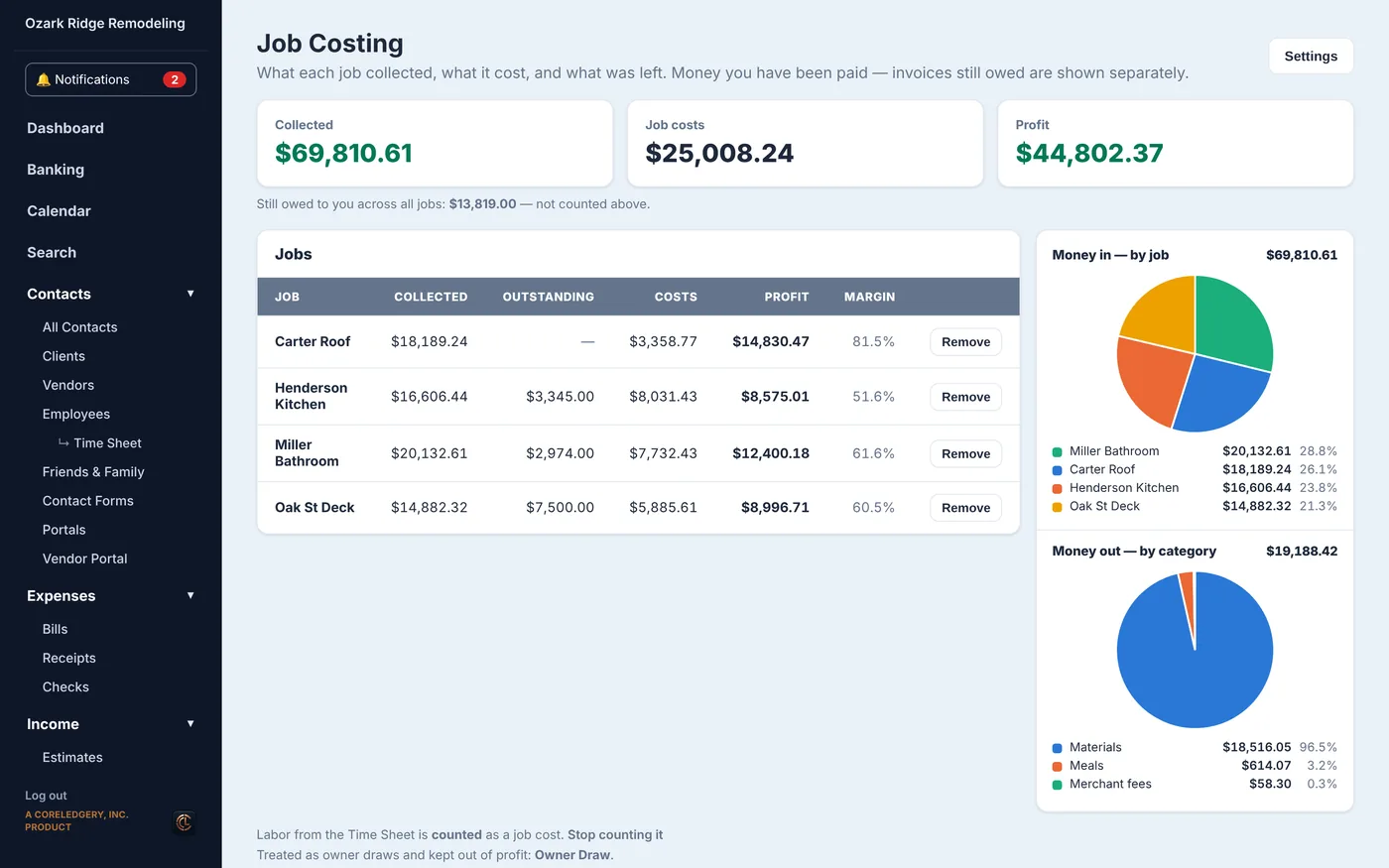
Money per job: what each job brought in, what it cost and what it made.
How to use it
- Put a job on your transactions and invoices.
- Come here to see profit and margin for each one.
What's here
- Collected, costs and profit per job
- Money in by job and money out by category charts
- Crew labor from the Time Sheet
Back to the top
Taxes
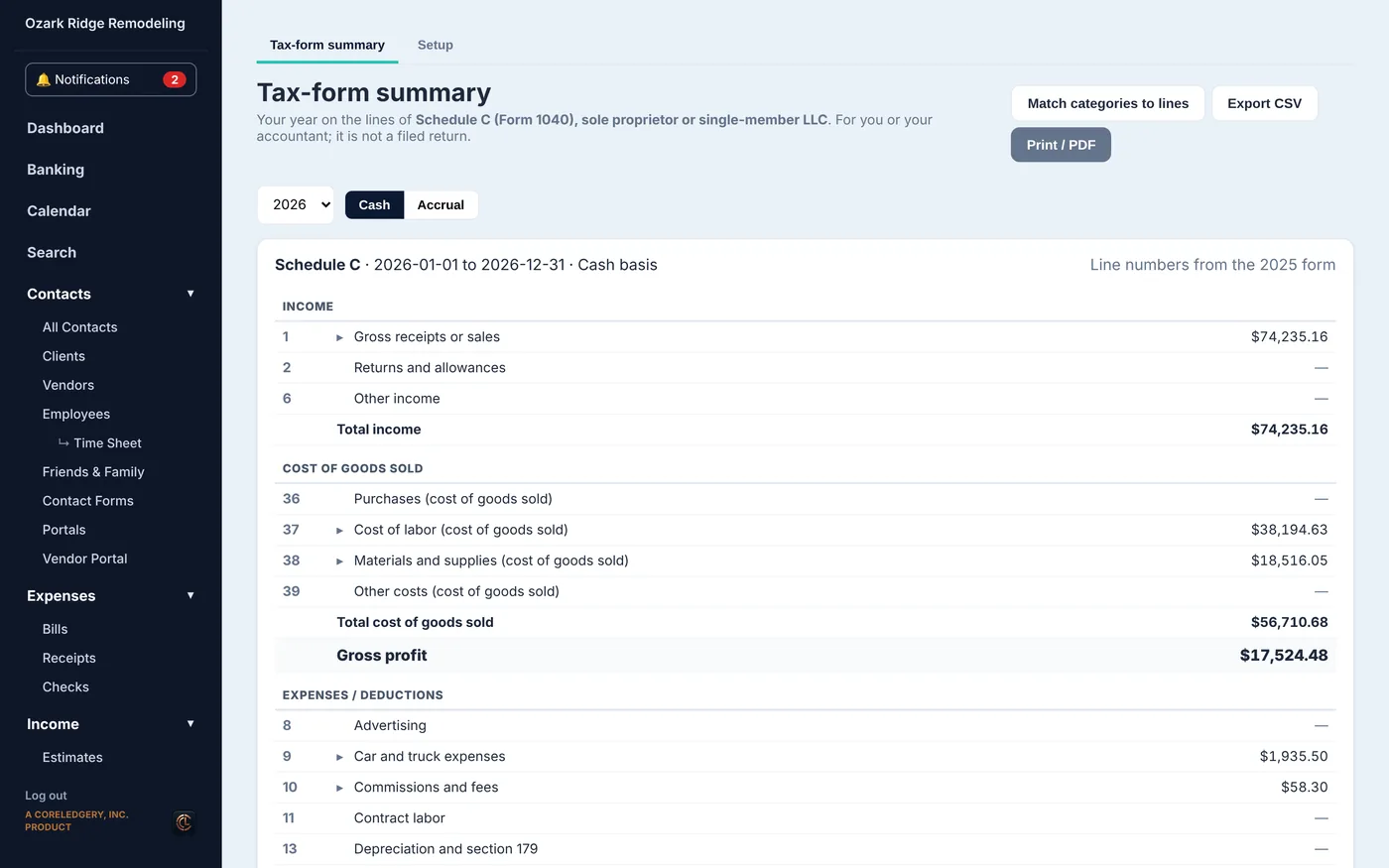
Your year on the lines of your tax form, ready for you or your accountant.
How to use it
- Click Setup once to say which form you file.
- Match your categories to the form lines.
- Print or export it at tax time.
What's here
- Schedule C lines with totals
- Cash or accrual
- Export CSV and Print / PDF
Back to the top
Settings and extras
Settings
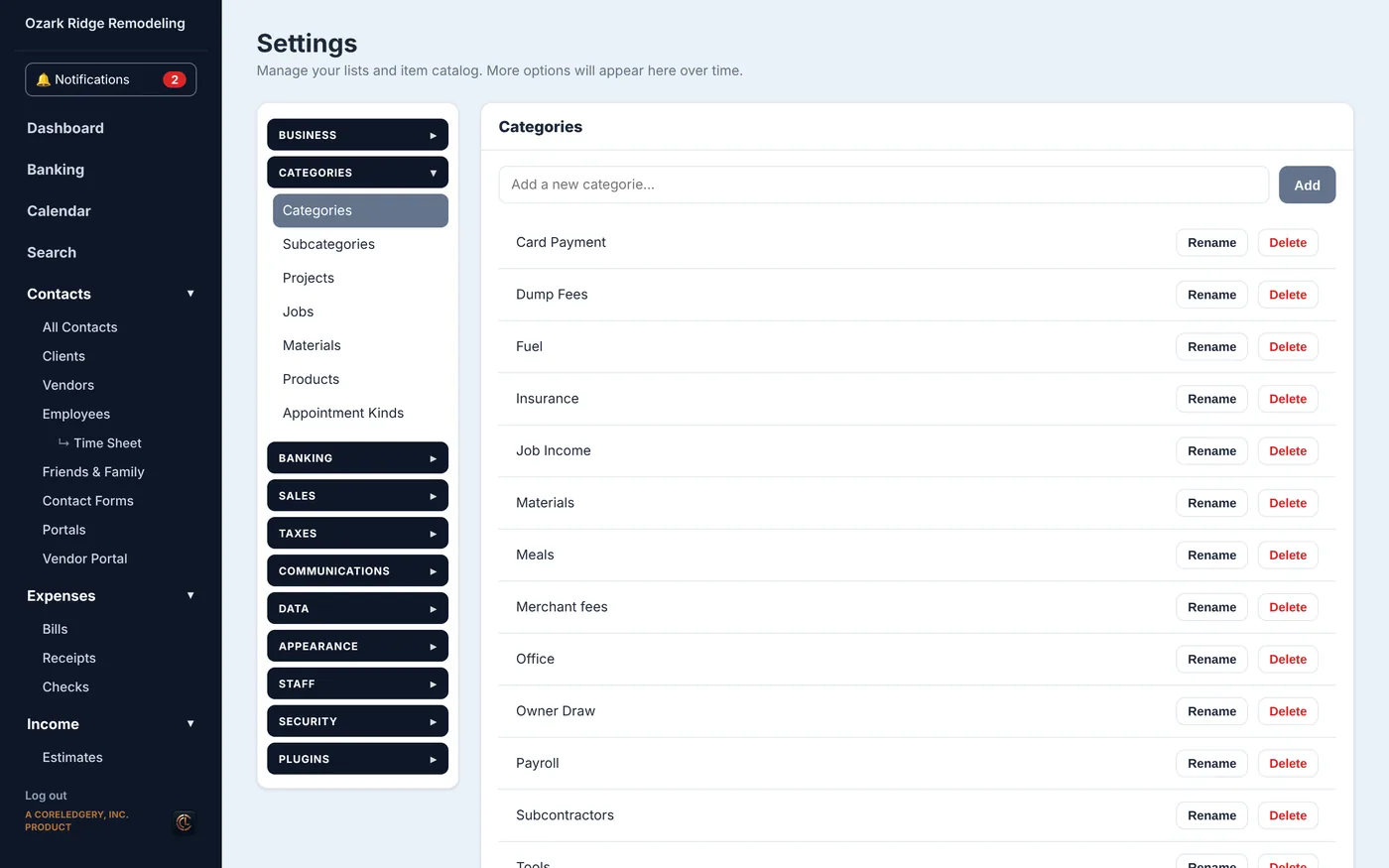
Your lists and how the app works for you.
How to use it
- Click a group on the left (Categories, Banking, Taxes, Staff...).
- Open the item you want to change and make your change.
What's here
- Categories, jobs and your item catalog
- Bank profiles and linked banks
- Staff logins for an office helper or accountant
- Two-step sign-in
- Plugins to turn features on and off
Back to the top
Calc Sheet
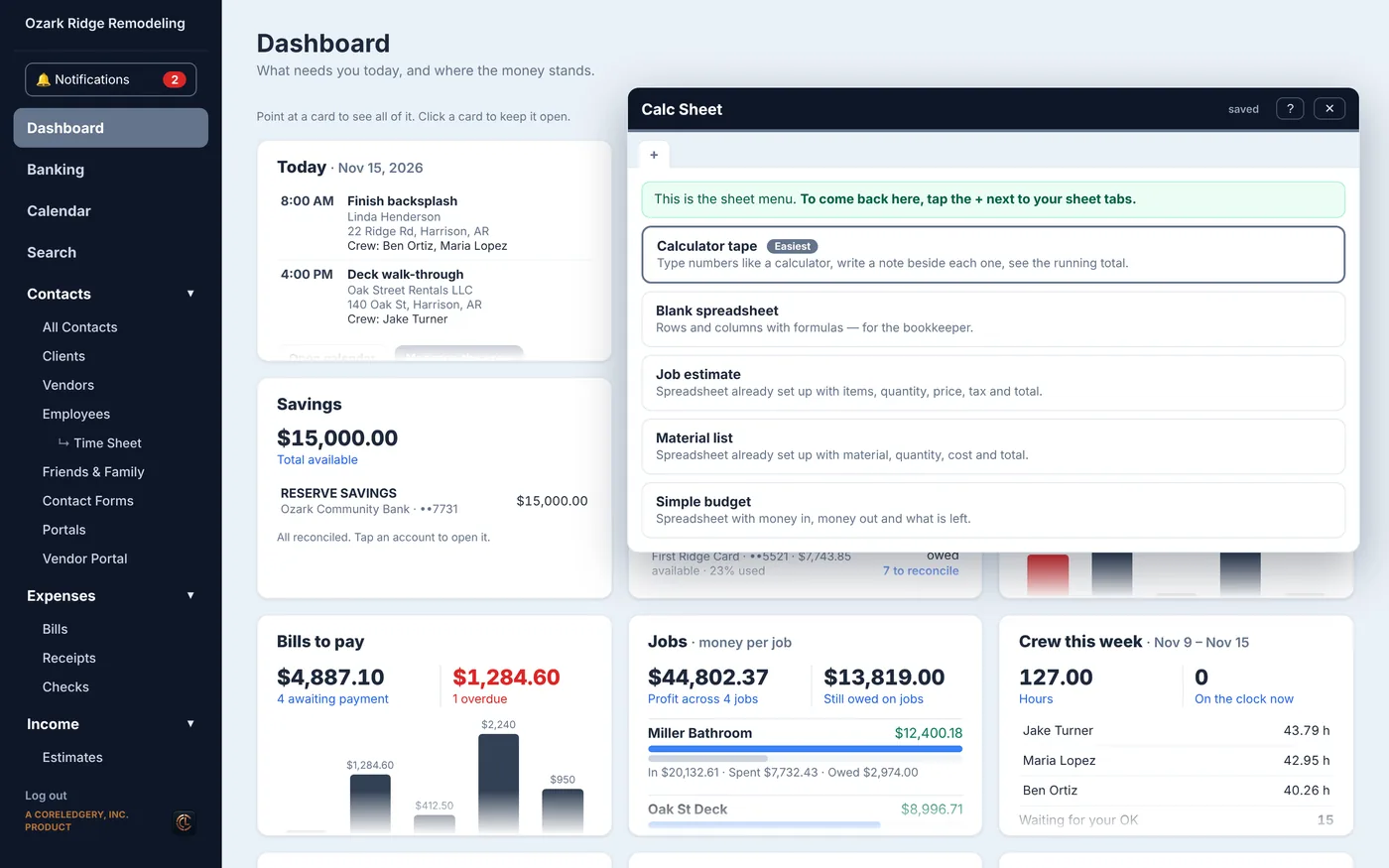
A calculator tape and simple spreadsheets, saved inside your books.
How to use it
- Click Calc Sheet in the sidebar.
- Pick a calculator tape or a ready-made sheet like a job estimate or materials list.
What's here
- Calculator tape
- Blank spreadsheet
- Job estimate, material list and simple budget sheets
Back to the top
Suggestion box
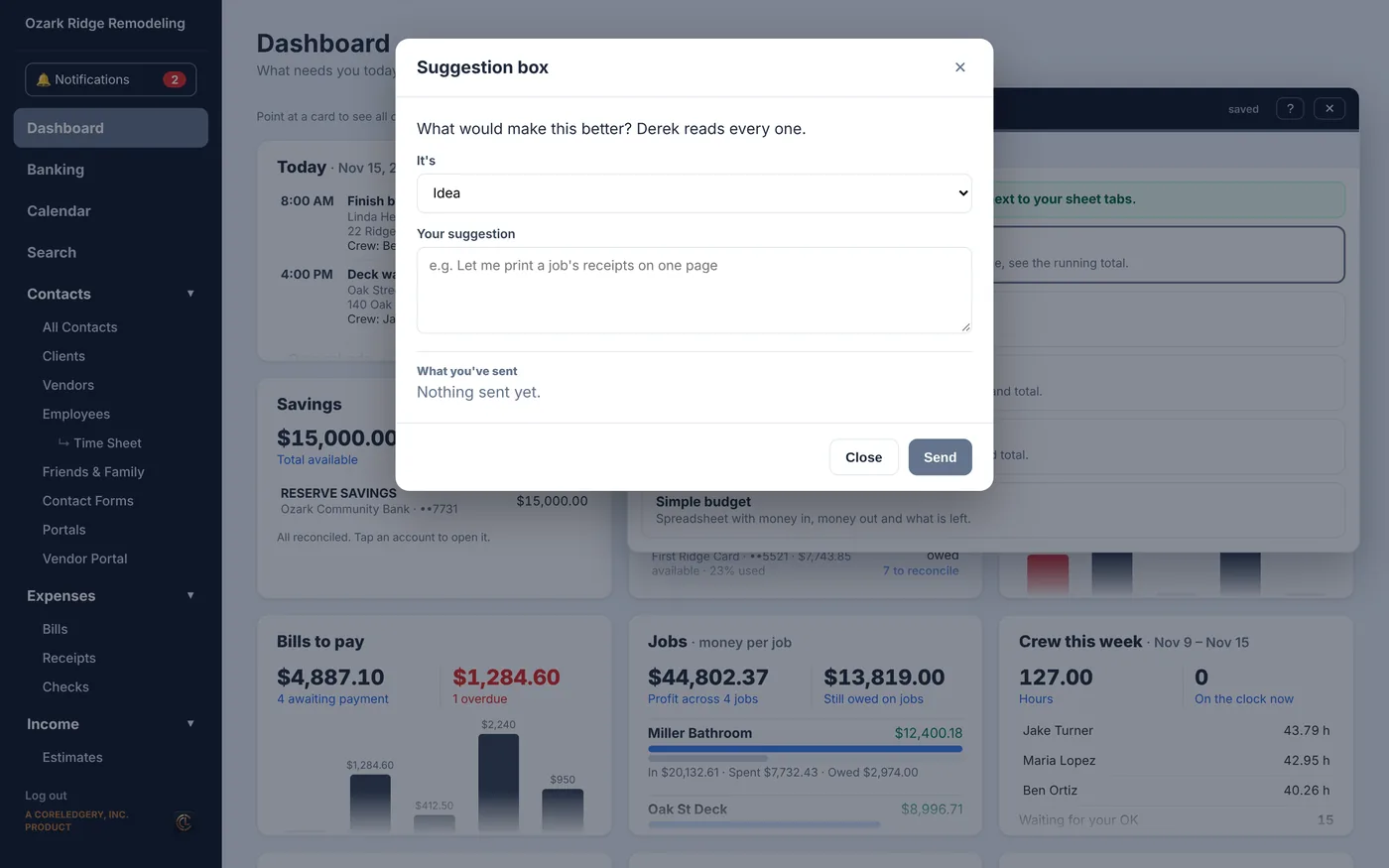
Tell us what would make Investimates better. The owner reads every one.
How to use it
- Click Suggestion box, type your idea, click Send.
What's here
- Your idea or problem
- What you have sent before
Back to the top
What's new
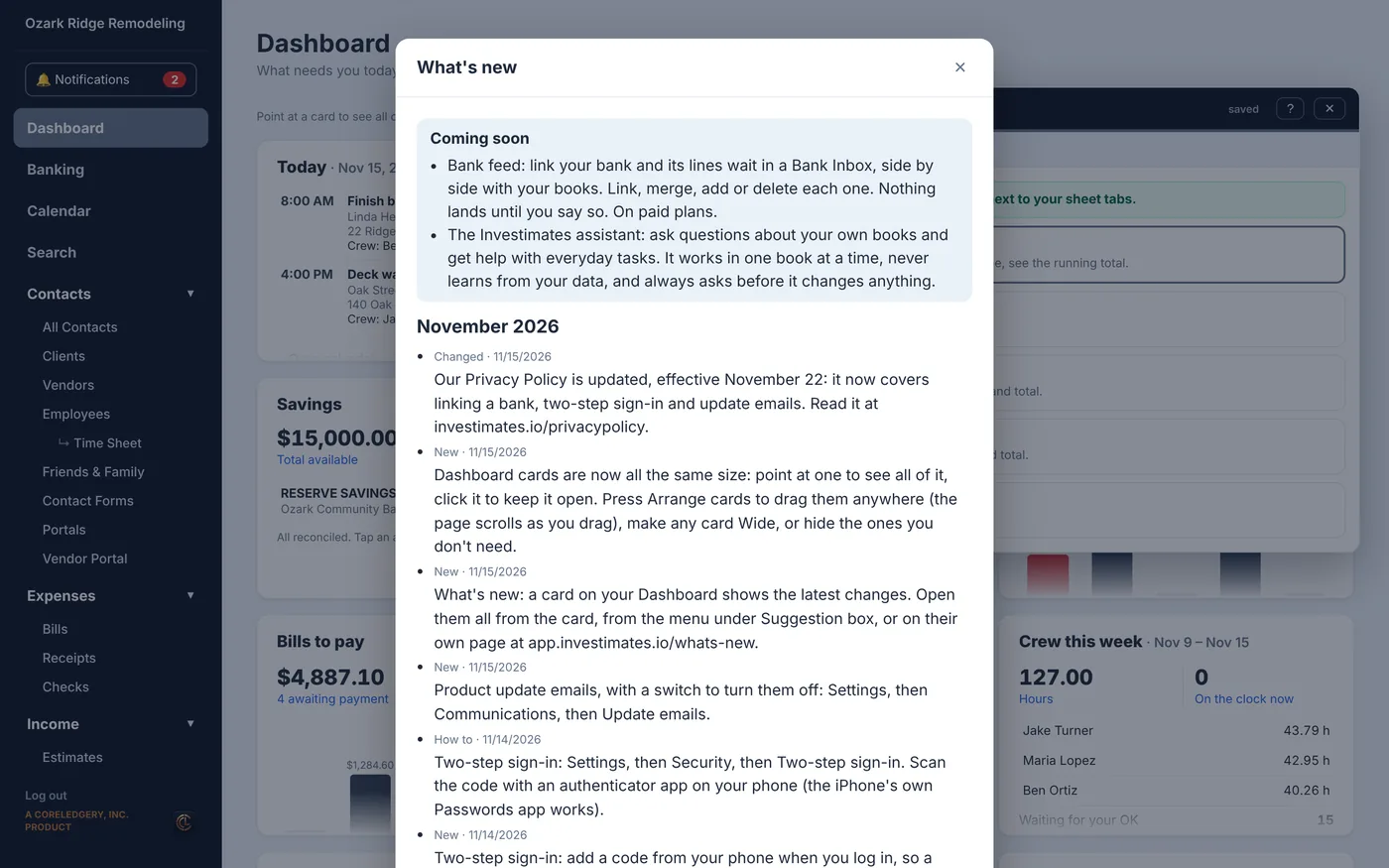
What changed lately and what is coming soon.
How to use it
- Click What's new in the sidebar, or the card on your Dashboard.
What's here
- Coming soon
- Every change, newest first, in plain words
Back to the top